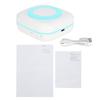
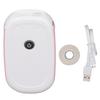
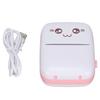
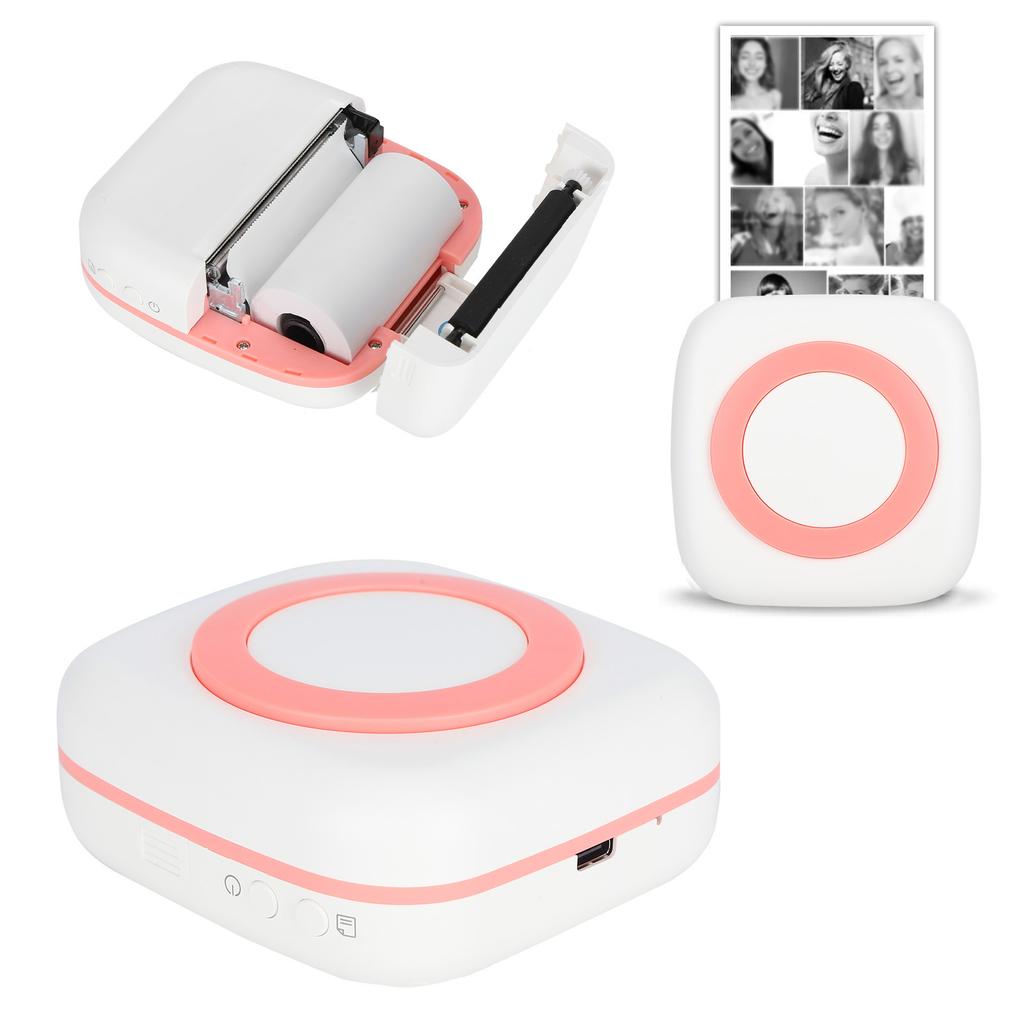
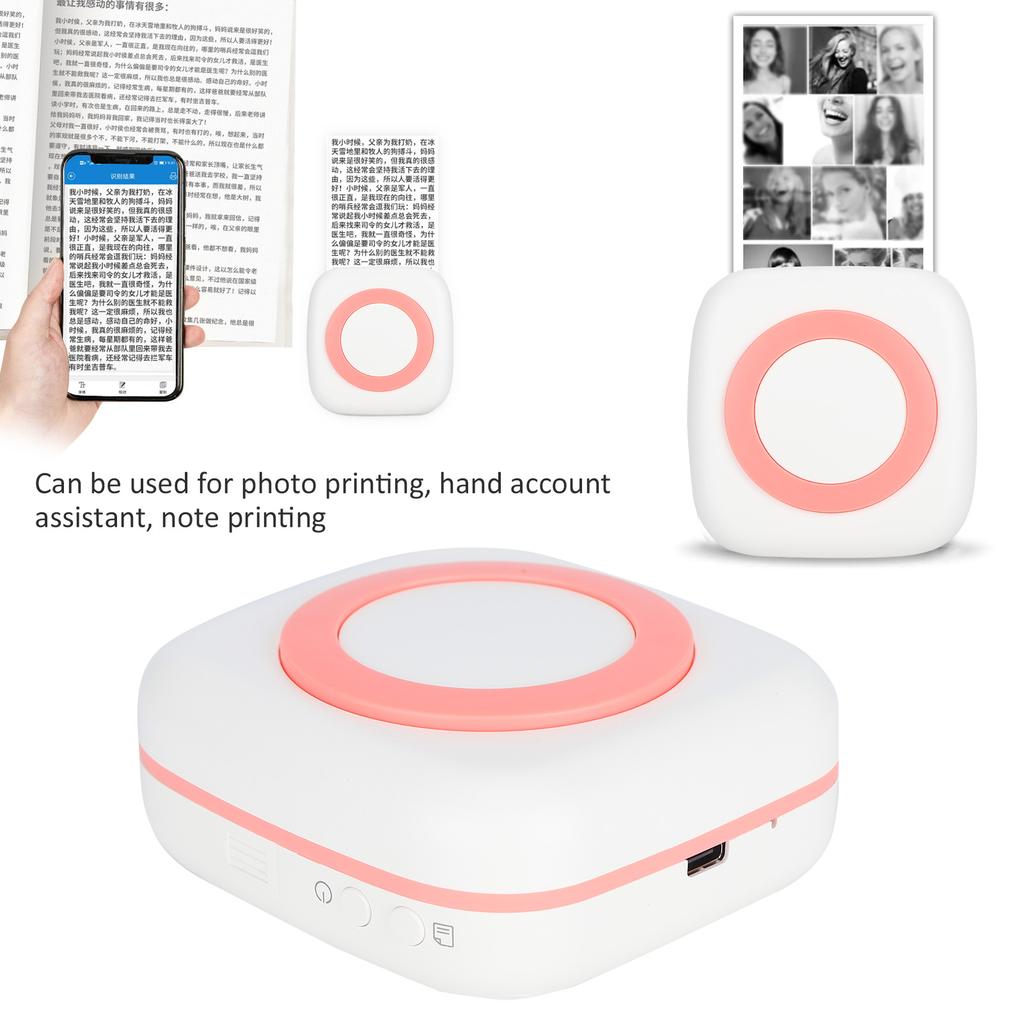
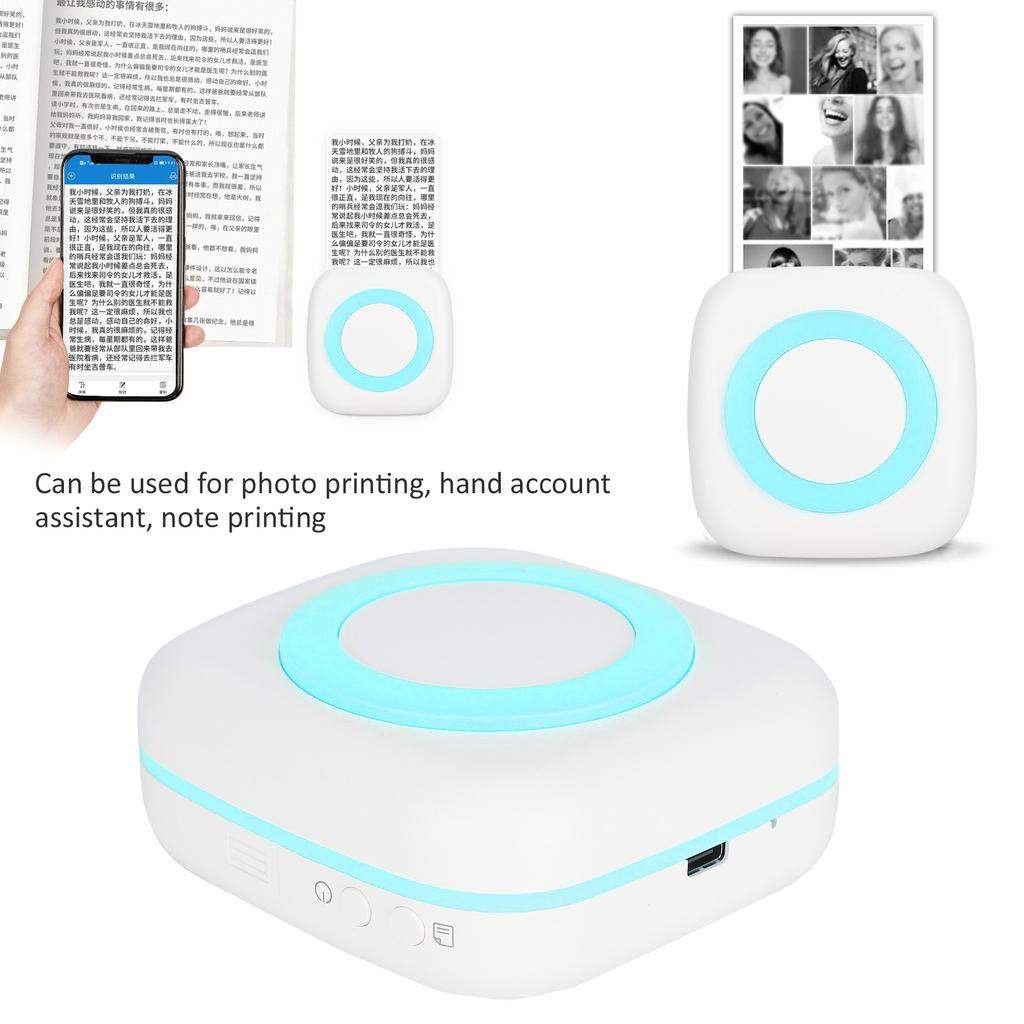
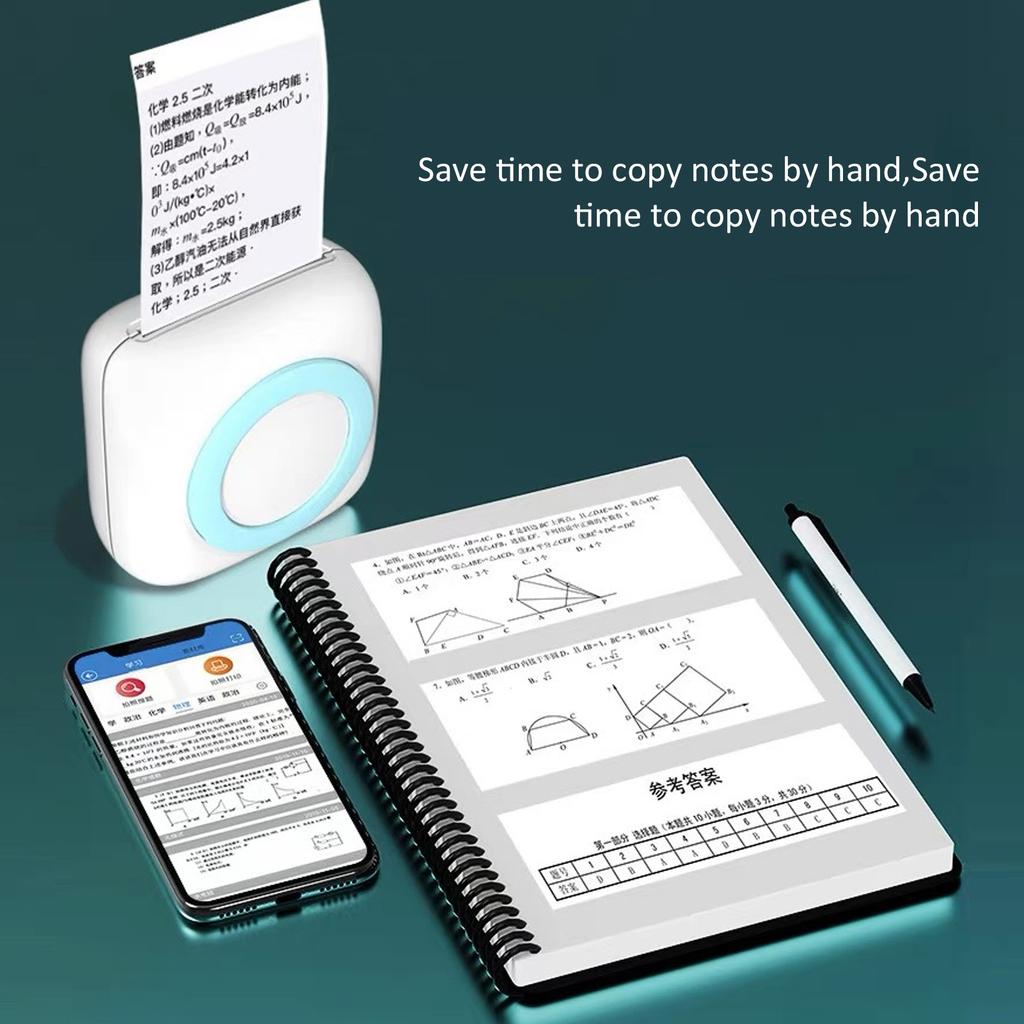
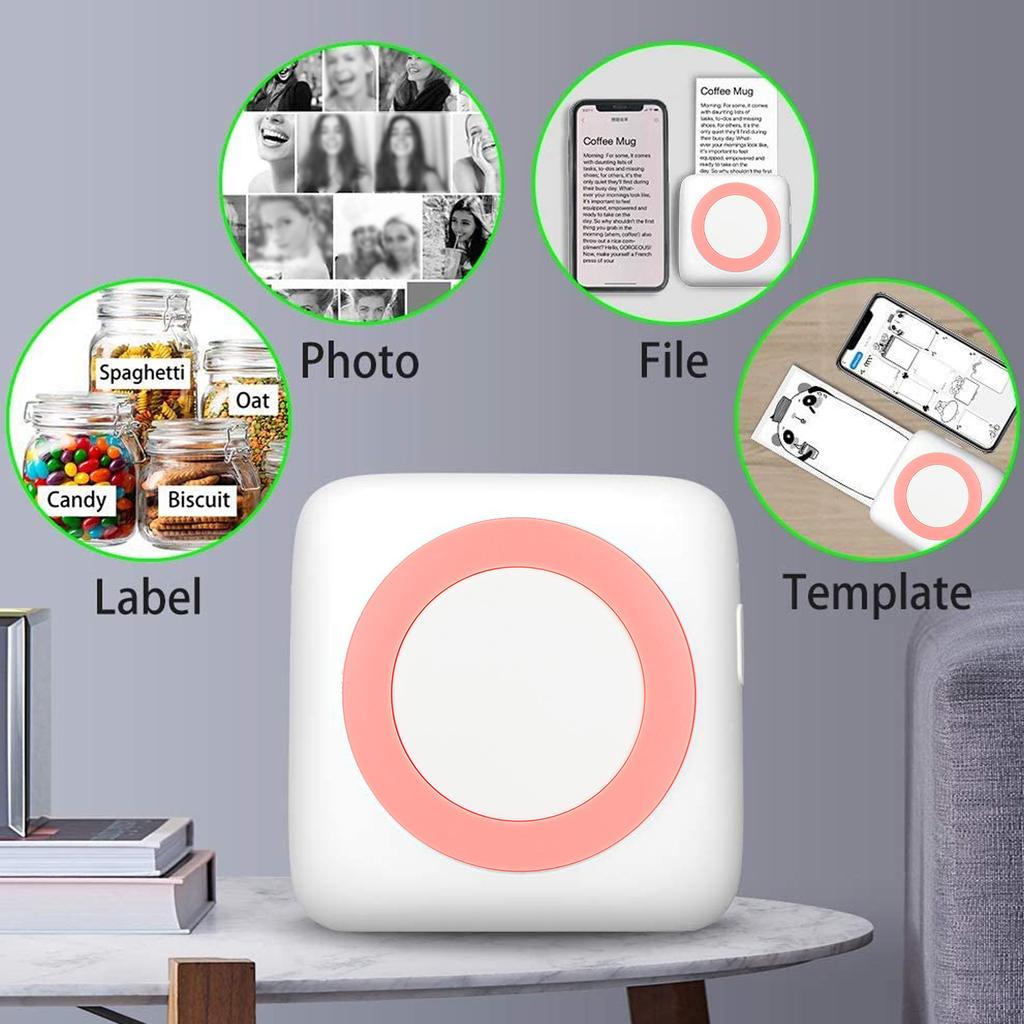
The printer can be used for photo printing, hand account assistant, note printing.
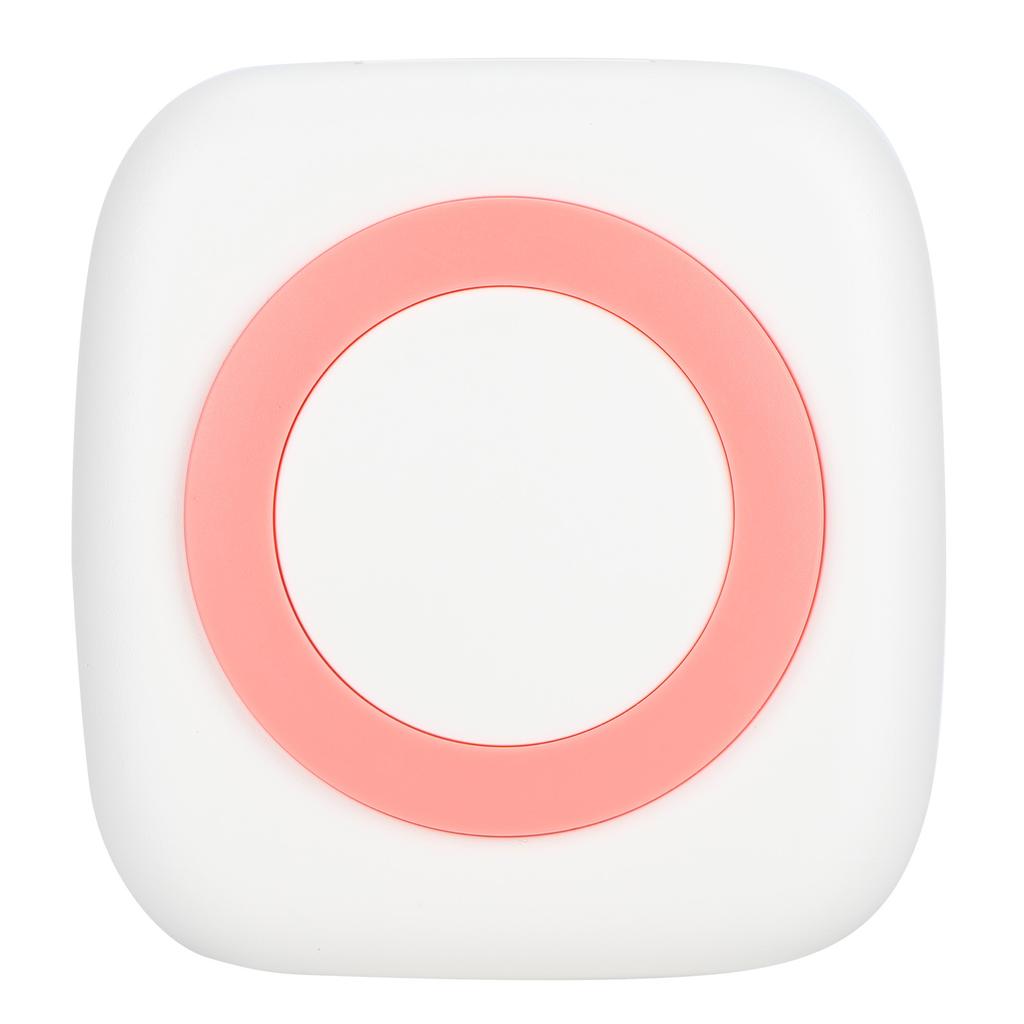
Designed with compact and exquisite body, the printer is convenient and sy to carry.
Pictures can be converted to text in seconds, and can be retypeset and edited, and the font size can be changed as needed to make the printing clrer.
Item Type: Printer
Material: ABS
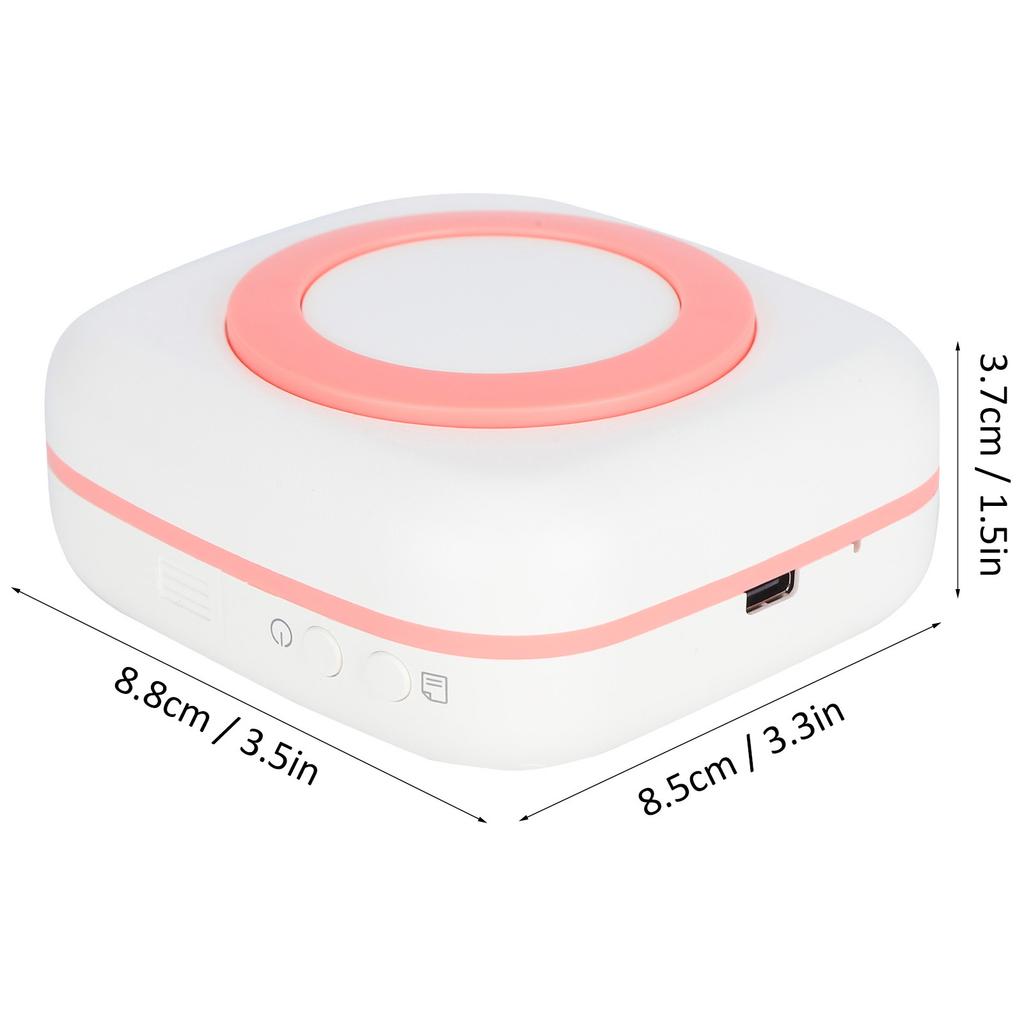
Product Size: Approx. 8.8x8.5x3.7cm / .3.5x3.3x1.5in
(Manual Msurement, There May Be Slight Errors)
Printing Parameters: 200DPI
Printing : Thermal Inkless Black And White Printing
Battery Type: Lithium Battery (Shipped With Built-In Battery)
Battery Model: 18650
Battery Capacity: 800mAh
APP: EDraw
Charging Time: 2-3 Hours
Input: 5V/1A
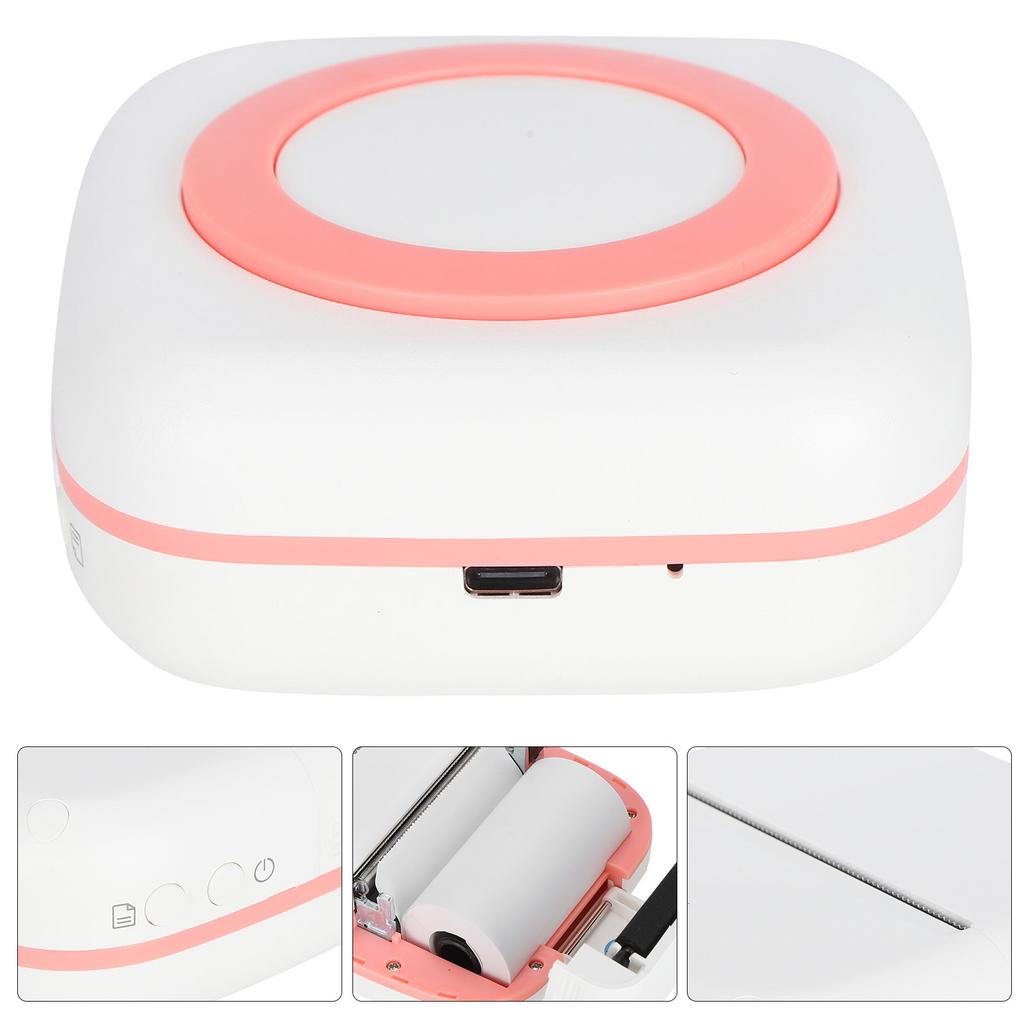
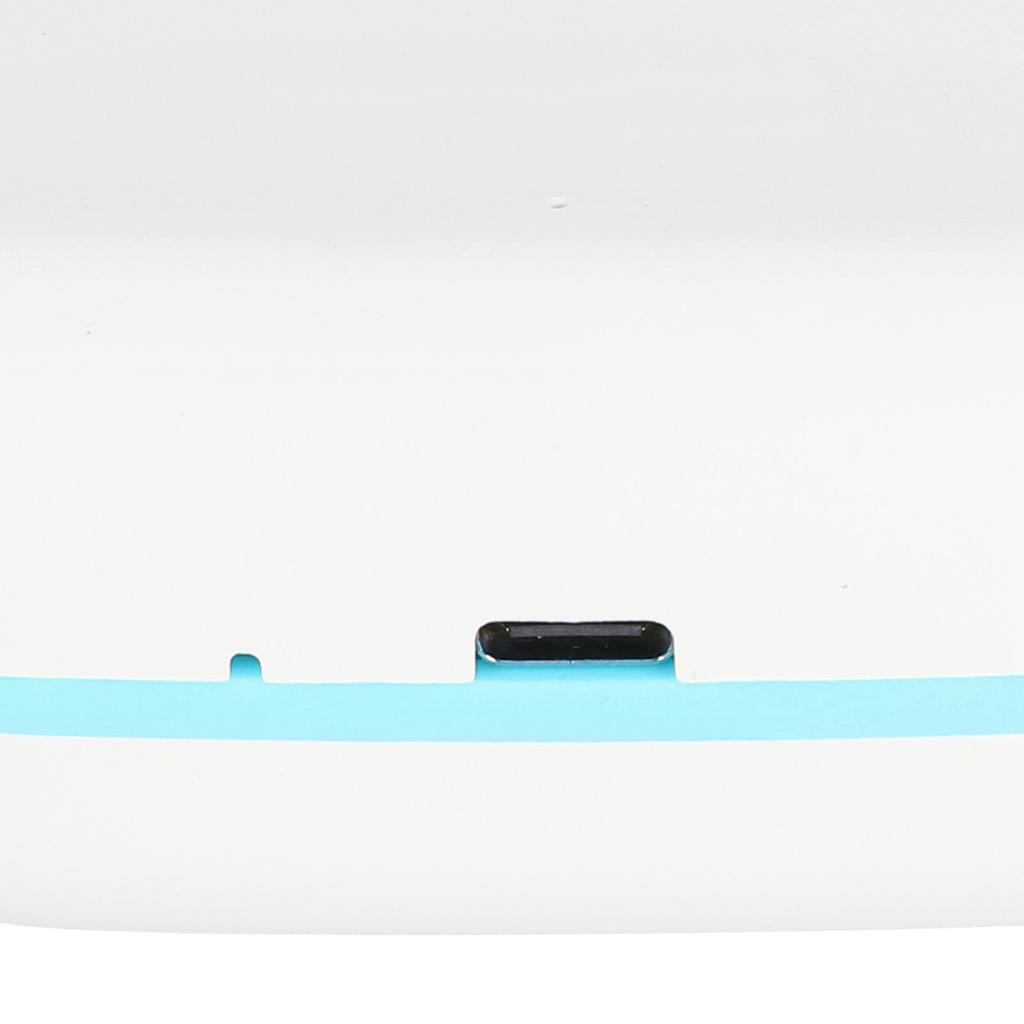
Charging Port: Type-C
Applicable Printing Paper: Approx. 57x30mm / 2.2x1.2in
Connection : Wireless, Inkless Black And White Printing
How to Use:
1. Use the Wizard:
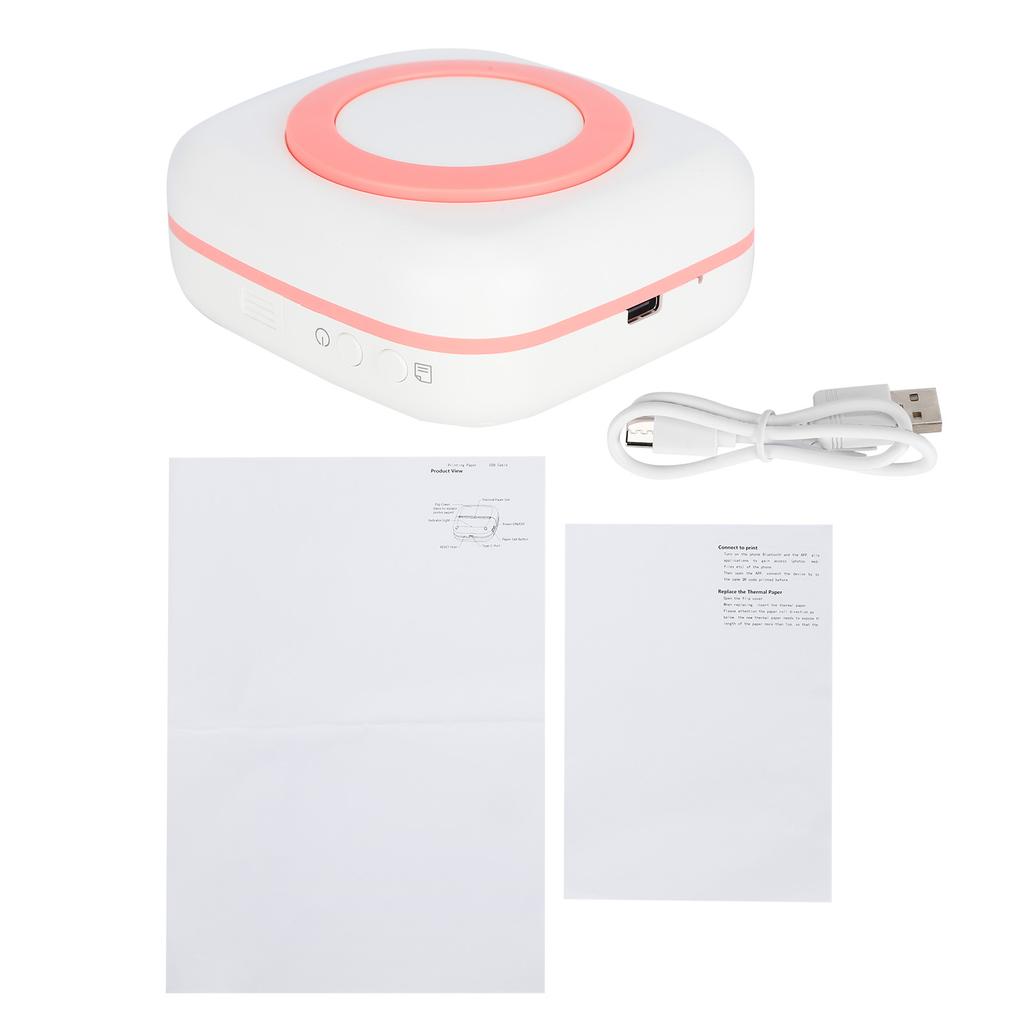
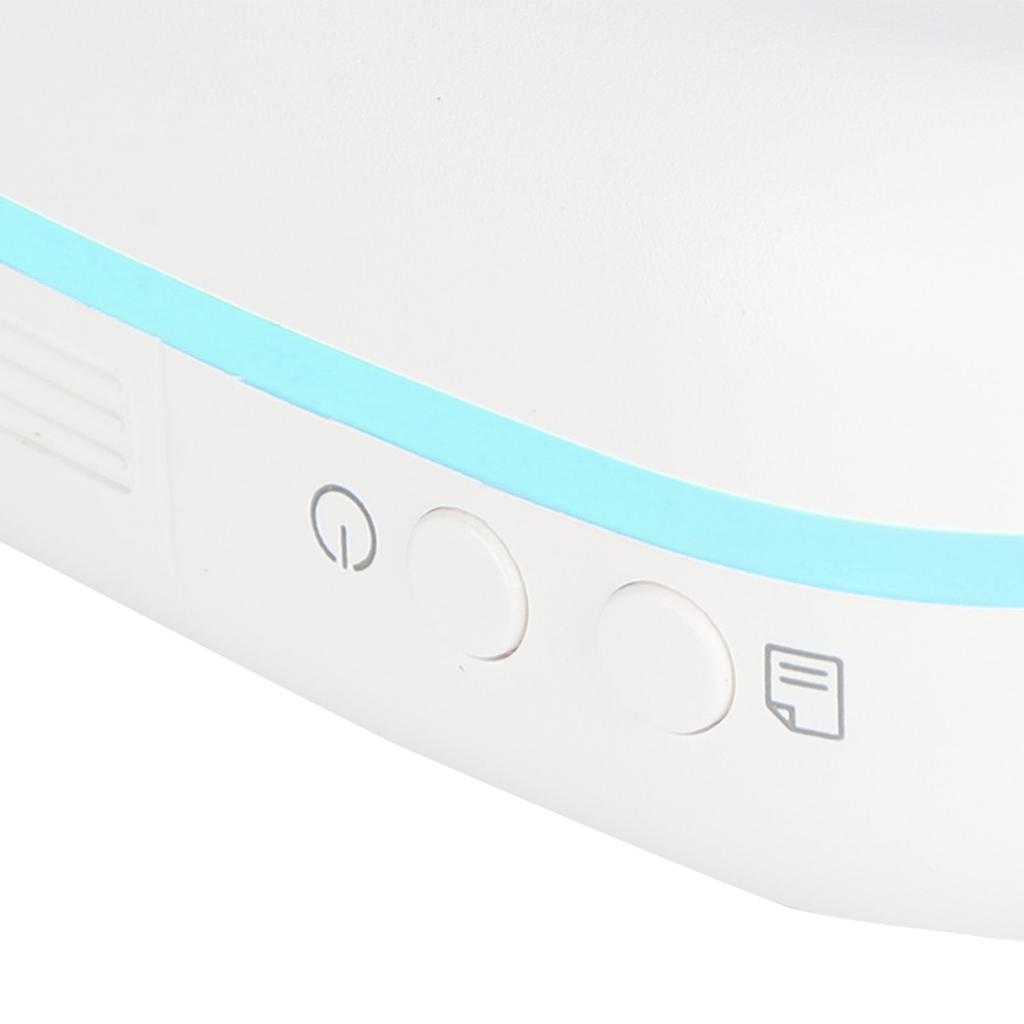
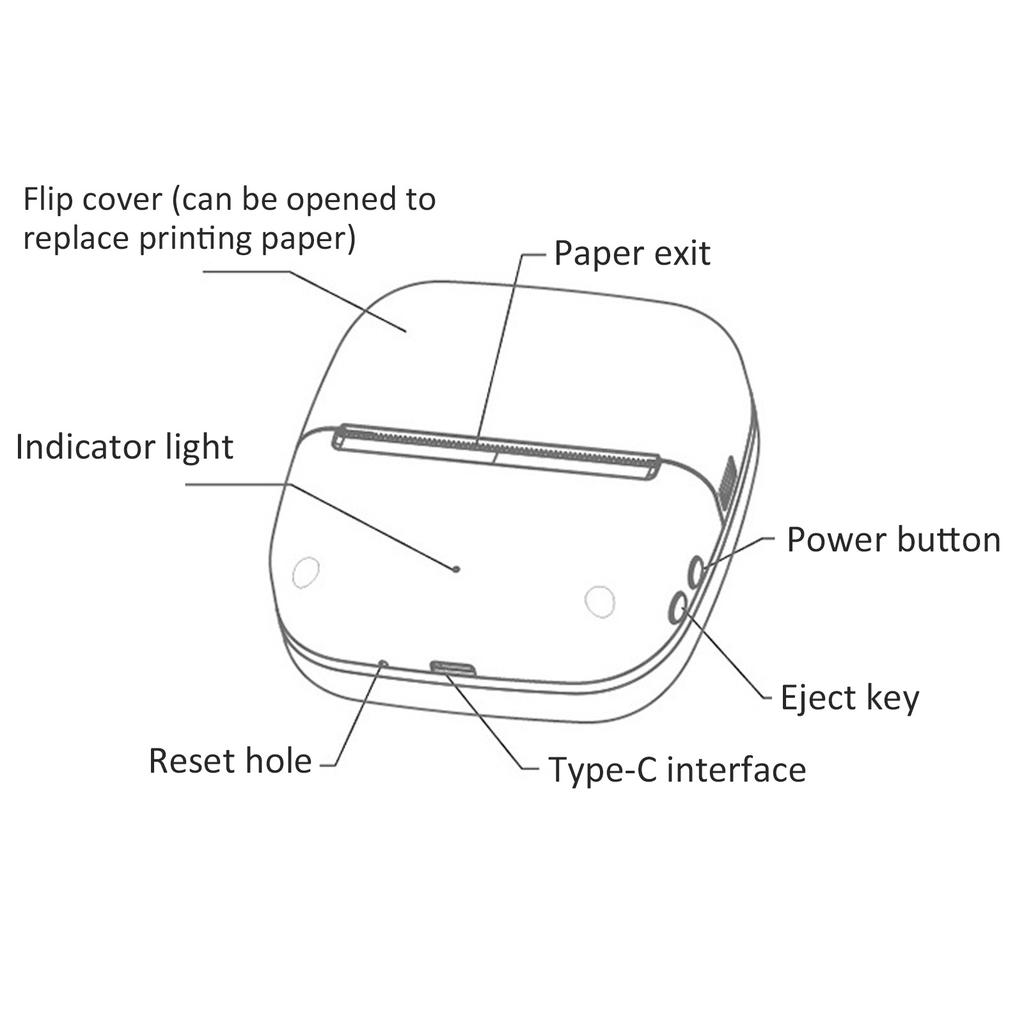
Press and hold the key for 2 seconds to turn on/off
Stdy on: standby, charging is complete
Fast Flashing: Insufficient consumables, print hd overhting, low battery
Slow Flashing: Charging
2. Paper Eject Key: press and hold to eject paper; let go to stop ejecting paper.
3. Charging: Before turning on the NaMachine for the first time, plse plug in the USB cable to connect the 5V/A adapter, adapter or computer for charging. We recommend using it after charged. Under normal circumstances, the indicator light flashes slowly when charging, and the full indicator light is always on. If the indicator light keeps flashing fast while charging, plse check if the device is out of paper, and check if the charging is normal after installing the printing paper.
4. The user downloads eDraw, after downloading, turn on the of the mobile phone, and then open the APP to allow the application to obtain the relevant permissions of the mobile phone, register and log in to the account. You can print after connecting the device success .
5. Replace the Printing Paper:
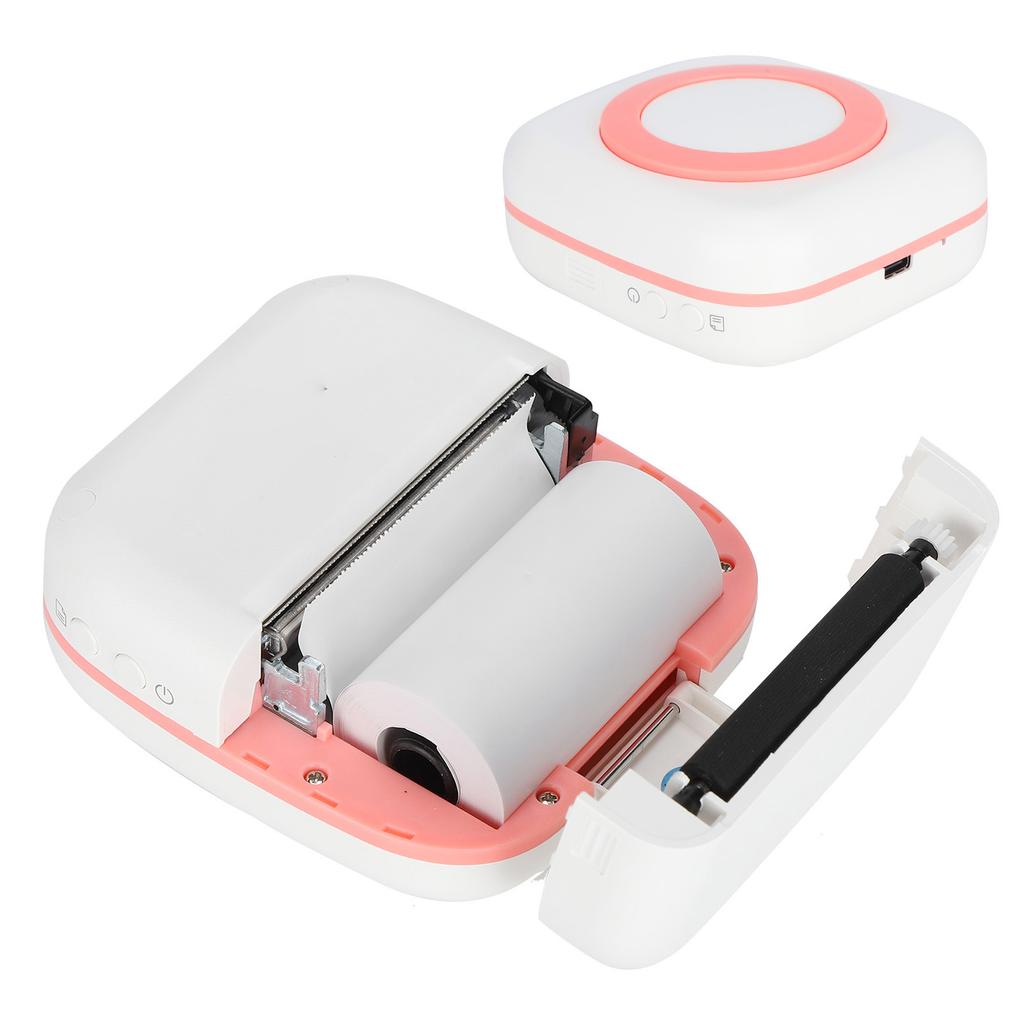
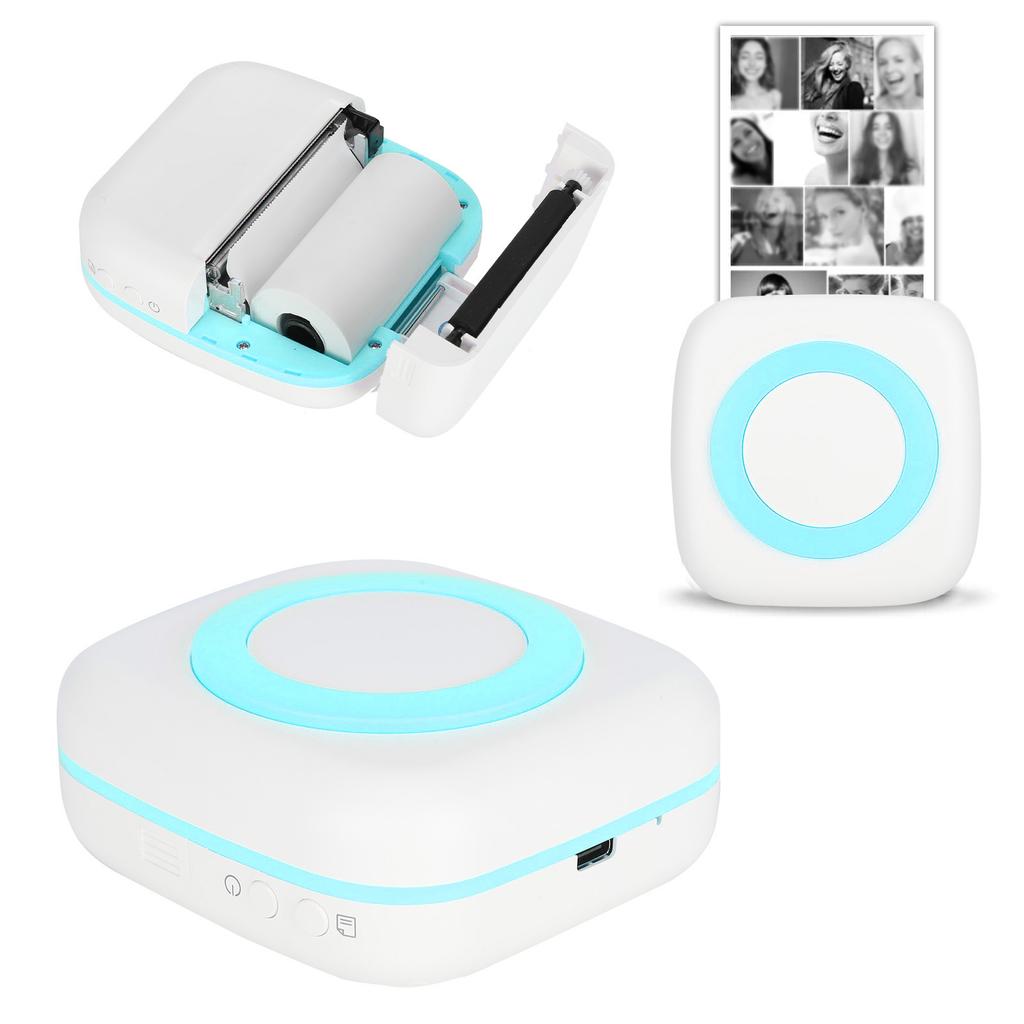
1. Open the cover.
2. When replacing the printing paper, insert the printing paper. The printing paper can be self-adhesive, ten-yr paper, photo paper, multi-color paper or marking paper. Plse pay attention to the direction of the printing paper when replacing it. Note that the new thermal paper needs to be exposed to a length of more than 1cm in the paper bin, so that the NaMachine can automatically suck paper when the paper bin is loaded.
3. Close the lid.
Note: When replacing the paper after printing, do not touch the print hd to prevent burns.




 No-delivery refund